
Description
DataChat AI Agency is built for agencies and teams running several sites. One licence covers up to 10 websites, carries your own name and icon for your clients, and emails dashboards on a schedule. Bring your own AI key — Google AI Studio and Groq have free tiers, OpenAI is pay-as-you-go, and any OpenAI-compatible endpoint works, including Ollama and LM Studio — with no monthly question limit.
Ask your WordPress data anything
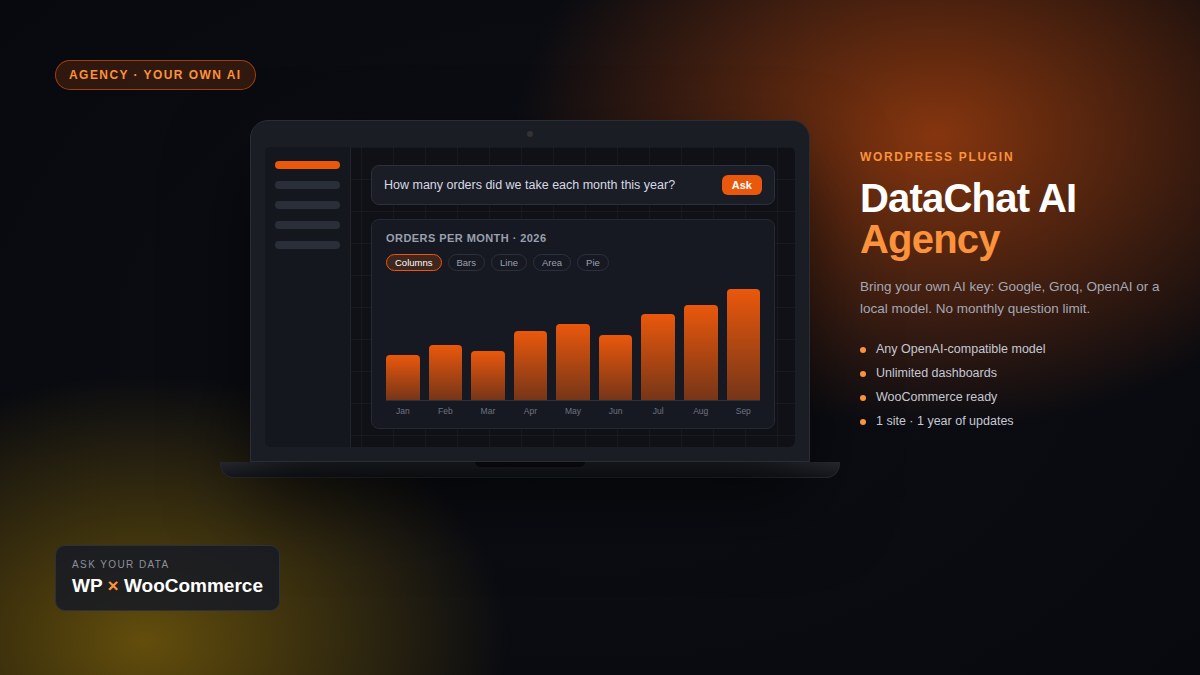
DataChat AI adds a question box to wp-admin. Type “How many orders did we take each month this year?” or “Which ten products sold best last quarter?” and get a chart, a table and a CSV in seconds — then save the answer as a panel on a dashboard.
What you get
- Plain-English questions under DataChat → Ask, with follow-ups (“and last year?”) and clickable example questions.
- Charts you choose: the AI proposes one, you switch between columns, bars, line, area, pie and KPI in one click. Time always runs forwards, long labels turn the chart on its side, and colours follow your theme.
- Unlimited dashboards: save as many panels as you like; each one re-runs live, with optional auto-refresh. The free edition keeps two.
- Scheduled email reports: any dashboard can email itself daily, weekly or monthly — the numbers arrive in your inbox without opening wp-admin.
- 10 sites per licence: install it on up to ten client sites with one key; move a site any time with Remove from this site.
- White label: rename the plugin and change its menu icon under Settings → White label — your clients see your brand in the menu, the screens and the email reports.
- Shortcodes to show a dashboard on a page for people without wp-admin access.
- WooCommerce ready: share the order and product tables and ask about sales, customers and stock.
- No external chart library: charts are drawn as inline SVG, about 20 KB of JavaScript, no CDN.
Safe by design
- Every query is checked before it runs: a single read-only
SELECT, only on the tables you chose to share, always with aLIMIT. - Sensitive columns (passwords, emails, session tokens) are blocked and masked by default, and you can add your own.
- Optionally run every query as a MySQL user that can only read.
- Only people with the capability you choose can ask; every question and query is logged.
- Your data stays on your server: the AI sees the question, the table structure and a small sample of result rows (30 by default) to design the chart — never the rest.
Your AI, your choice
- Google AI Studio (free tier, the default), Groq (free tier), OpenAI, or anything that speaks the OpenAI API: OpenRouter, Ollama, LM Studio.
- “List what this key can use” asks your provider which models are available, so you are never stuck on a retired one.
- Prefer a semantic layer? A self-hosted Wren AI service can be used as the engine instead.
- The AI is not included in this edition — choose DataChat AI Pro if you would rather not manage an API key.
Licence
- One licence key covers up to 10 websites, valid for one year of use and updates. The key is emailed after purchase and shown in your account.
- Renewing? Buy the same edition again with the same account (or email) — the key you already have keeps working and simply runs for another year. Renew early and you lose no days.
- Moving to a new site? Press Remove from this site on the licence screen, then activate the key on the new one.
- Requirements: WordPress 6.0+, PHP 7.4+, MySQL 5.7+ or MariaDB 10.3+.
- Using the free edition? Deactivate it before activating this one — your settings and dashboards carry over.
Compare the editions
| Free £0 |
Pro £149 / year |
Agency £299 / year |
|
|---|---|---|---|
| AI model | Your own API key | Included – no key needed | Your own API key |
| Questions | Unlimited at your provider’s rates |
~300 a month included then switch to your own key |
Unlimited at your provider’s rates |
| Providers | Google, Groq, OpenAI, Ollama & any OpenAI-compatible | Included model, plus all of these | Google, Groq, OpenAI, Ollama & any OpenAI-compatible |
| Sites per licence | Any number | 1 | 10 |
| Scheduled email reports daily, weekly or monthly |
— | ✓ | ✓ |
| Shortcodes to show dashboards on your pages | — | ✓ | ✓ |
| White label your name and icon for clients |
— | — | ✓ |
| Plain-English questions in wp-admin | ✓ | ✓ | ✓ |
| Charts you choose, tables, CSV export | ✓ | ✓ | ✓ |
| WooCommerce data (orders, products, customers) | ✓ | ✓ | ✓ |
| Read-only SQL guard, masked columns, query log | ✓ | ✓ | ✓ |
| Licence & updates | — | 1 year, renew with the same key | 1 year, renew with the same key |
| Get Free | Get Pro | Get Agency |
How to use DataChat AI
1. Install. Download the zip from your account, then in WordPress go to Plugins → Add New → Upload Plugin, choose the file and press Install Now → Activate. Already using the free edition? Deactivate it first — settings and dashboards carry over.
2. Activate your licence. Open DataChat → Settings, paste the licence key from your order email (also shown under My account → Orders) in the Licence box and press Activate. The licence covers one site; to move it, press Remove from this site and activate it on the new one.
3. Connect the AI. In DataChat → Settings pick a provider — Google AI Studio (free key at aistudio.google.com/apikey), Groq, OpenAI, or any OpenAI-compatible endpoint such as Ollama — paste your API key and press Test connection. List what this key can use shows the models your key can call.
4. Choose your data. In DataChat → Data & schema tick the tables the AI may query (posts, orders, products, customers…) and add a few lines of business context, e.g. “revenue = completed and processing orders”. Nothing to deploy: the schema travels with every question.
5. Ask. Go to DataChat → Ask and type a question in plain English. You get a chart, a table, the SQL that ran and a CSV export. Switch the chart type with one click, ask a follow-up (“and last year?”), then press Save to dashboard.
6. Dashboards. DataChat → Dashboards shows your saved panels, re-run live every time you open them. To show a dashboard on a page, add the shortcode [datachat_dashboard id="12"]; [datachat] puts the question box on a page for logged-in users. Under each dashboard, Email this dashboard sends it on a schedule.
Questions to try: “Revenue by month this year” · “Top 10 products by units sold last quarter” · “New customers per week” · “Posts published per category”.


Reviews
There are no reviews yet.